Every clock punch in Springpoint is geo-location stamped, so when your browser asks for location access, always allow it.
Log in
Open a browser and go to rhino.sps-west.com. Save this page — you'll be back here several times a day. On a phone, add it to your home screen as an icon. Chrome and Safari both work well.
Your username is usually your first name and the first initial of your last name (John Doe becomes JohnD). The default password is 123 — Springpoint will make you set a real one the first time you log in.
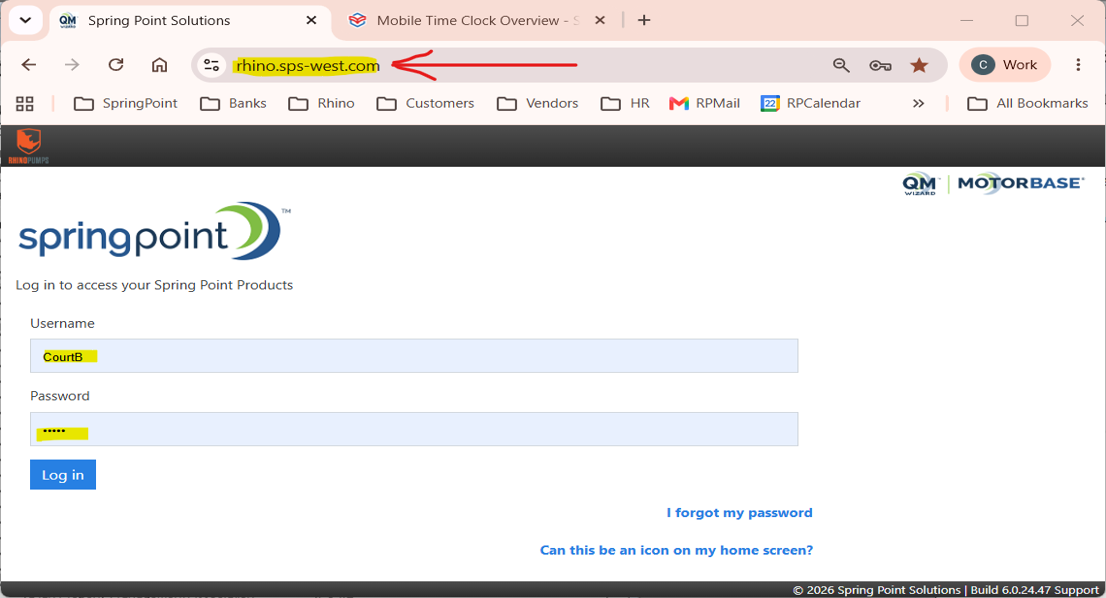
Springpoint logs you out automatically after a period of inactivity. That's just the browser session — it does not change your time clock status. You'll need to log back in to use the clock, but any open punch keeps running underneath.
Punch in and out for payroll
Your daily attendance is tracked with four punches:
- Morning arrival — punch in when you start your day
- Lunch break — punch out when you leave for lunch
- Return from lunch — punch in when you're back
- End of day — punch out when your shift ends
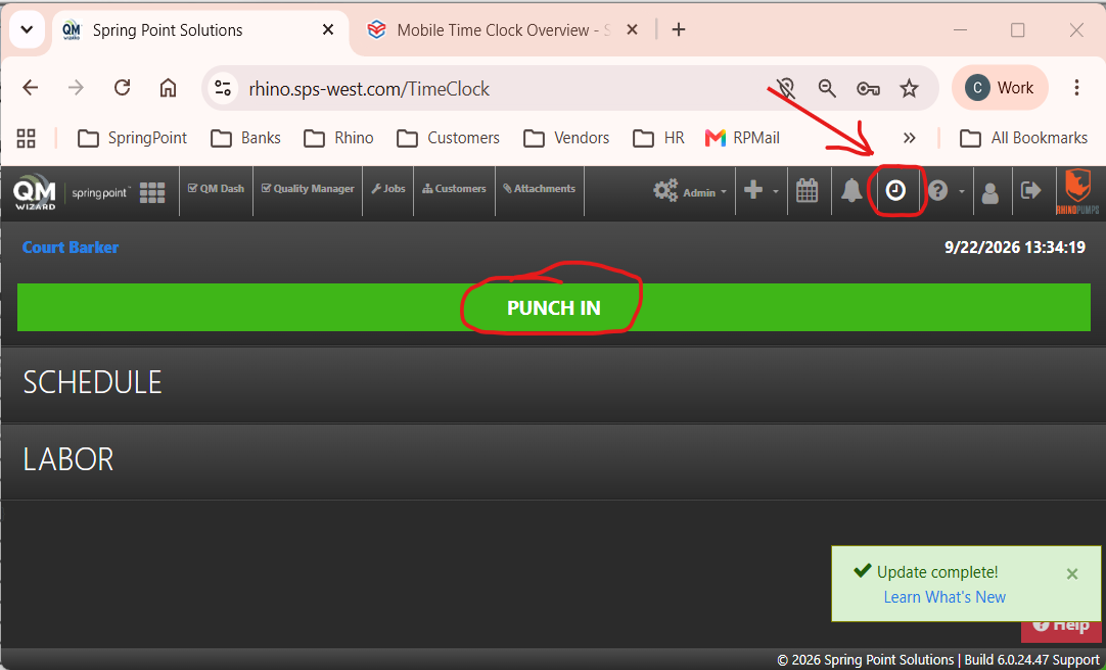
That first punch of the day does two things at once: it starts your payroll clock and opens a new work session, which is where job allocation comes in.
Job allocation: logging time to a job
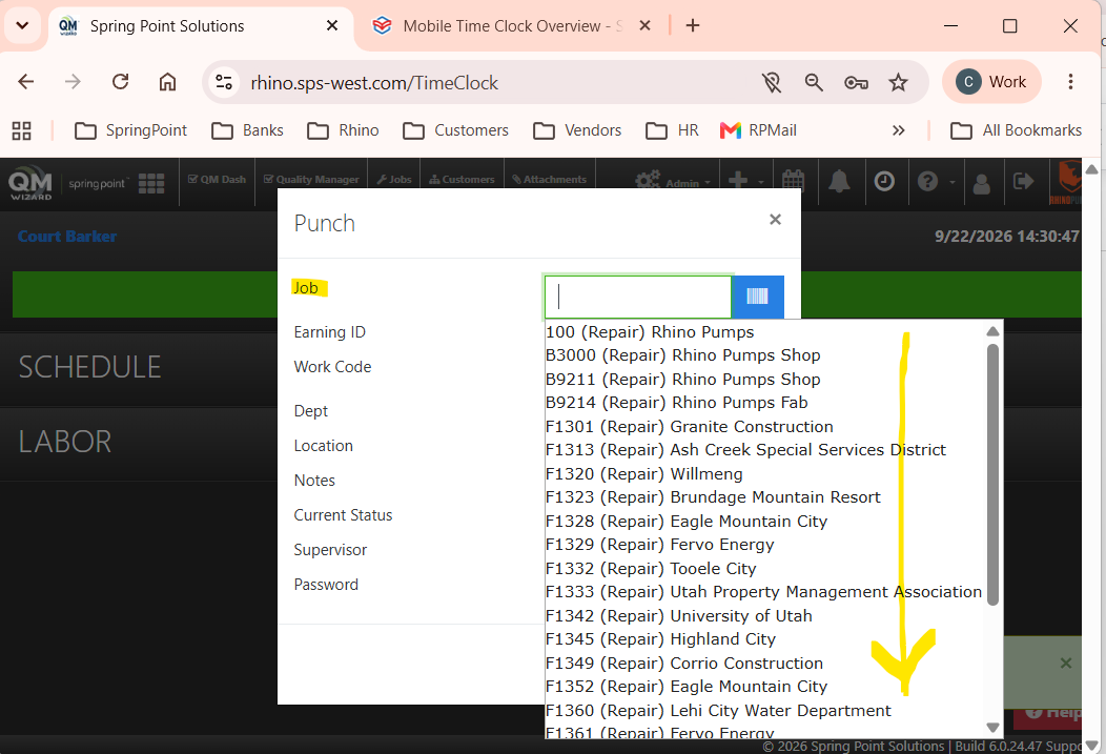
Every project is assigned a job number. Whenever you're working on a specific job, click the Job field and either type the job number to filter the list or scroll to find it.
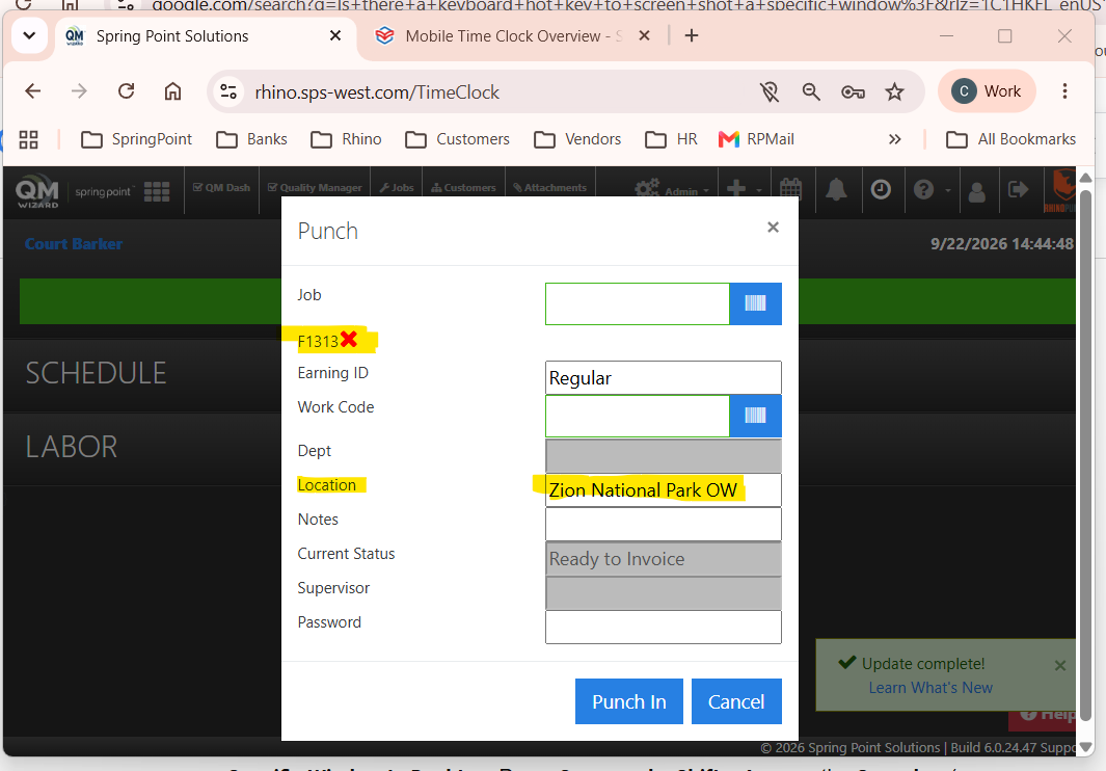
Once you pick one, it appears on the left with a red X next to it — click the X if you picked the wrong one and choose again. If you don't know the right job number, check with inside sales. The Location field usually shows a short description of the project so you can confirm you've got the right one before punching in.
It's completely normal to be punched into the clock for payroll and not be logged to a job yet — that's what workcodes are for.
Workcodes
Every time you log work — to a job, or not — you also pick a workcode describing what you're doing. The clock will not let you punch in for payroll without one selected.
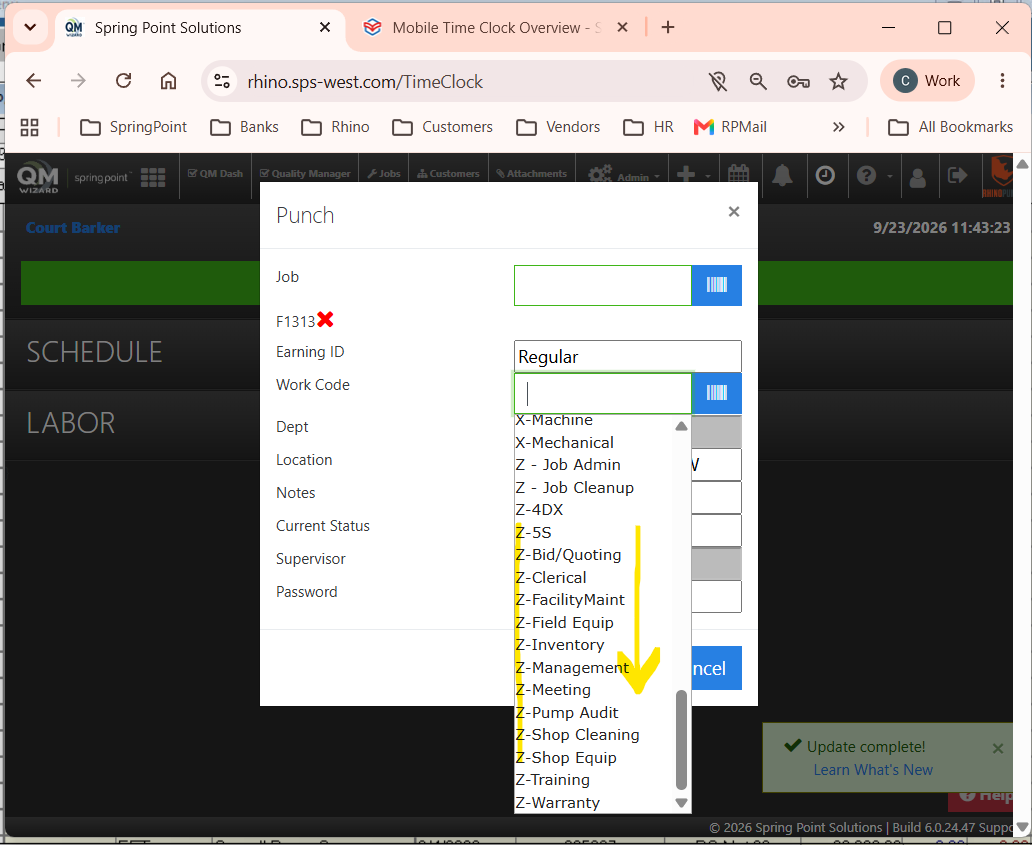
If you arrive and have non-job admin work to do first (planning, cleanup, meetings), leave the Job field empty and pick a Z-code instead. Every non-job workcode starts with the letter Z. Type "Z" to filter the list, or scroll to the bottom to find them.
Switching jobs during the day: the PROCESS button
You'll often work more than one job in a day. A common pattern is starting the morning on a Z-code session for planning, then moving to a billable job once you get to it — the goal is to be billable as much of the day as possible.
To close out one work session and open the next — without punching out of payroll — log back into Springpoint and click the blue PROCESS button.
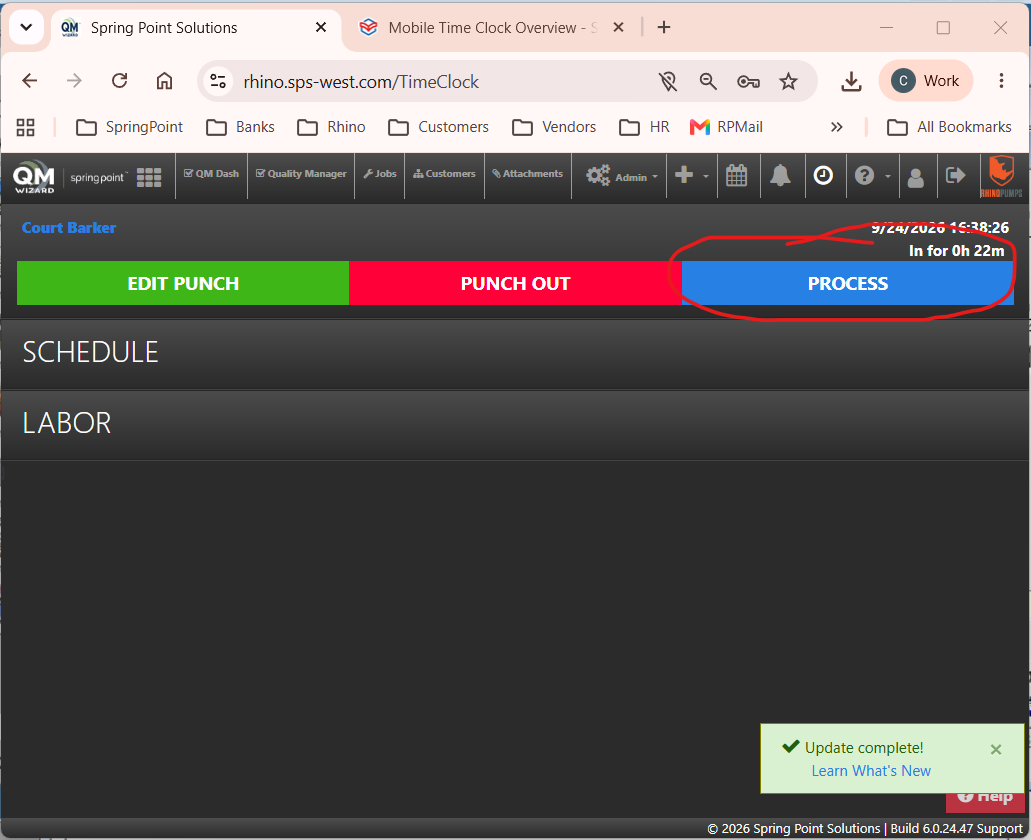
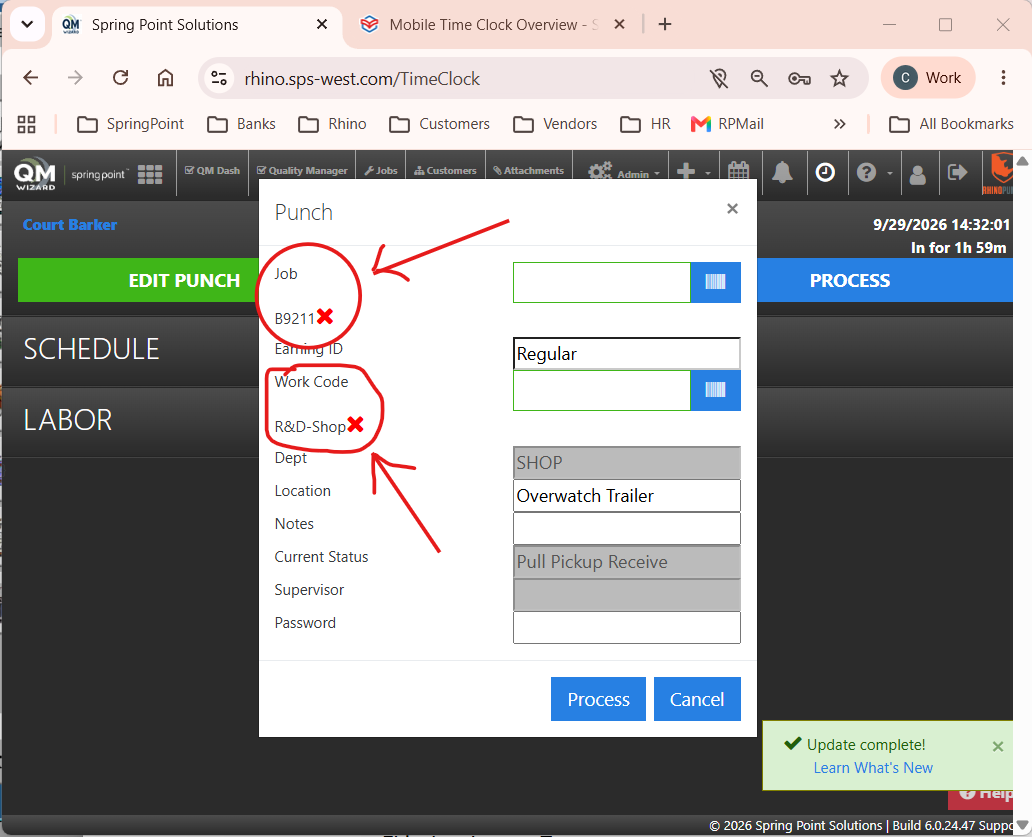
Clicking PROCESS pops up an end-of-session window with the job and workcode you were logged under already filled in. This is your chance to review — and correct, if needed — the job and workcode for the entire session you're closing, not just from this moment forward.
Example: you start a session at 10 am on workcode TEARDOWN and job R1000. At 11 am you're done and ready to switch jobs. When you hit PROCESS, you realize it should have been workcode ASSEMBLY and job R1010 the whole time. Any change you make on this end-of-session window overwrites the original selection for the full session — 10 to 11 am becomes ASSEMBLY / R1010, not just the last few minutes.
The end-of-session window looks identical to the begin-of-session window, so double-check which one you're looking at: if a job or workcode is already filled in on the left with a red X, that's an end-of-session punch.
As soon as you confirm the end-of-session window, a new begin-of-session window pops up immediately, asking you to pick the job and workcode for what you're starting next.
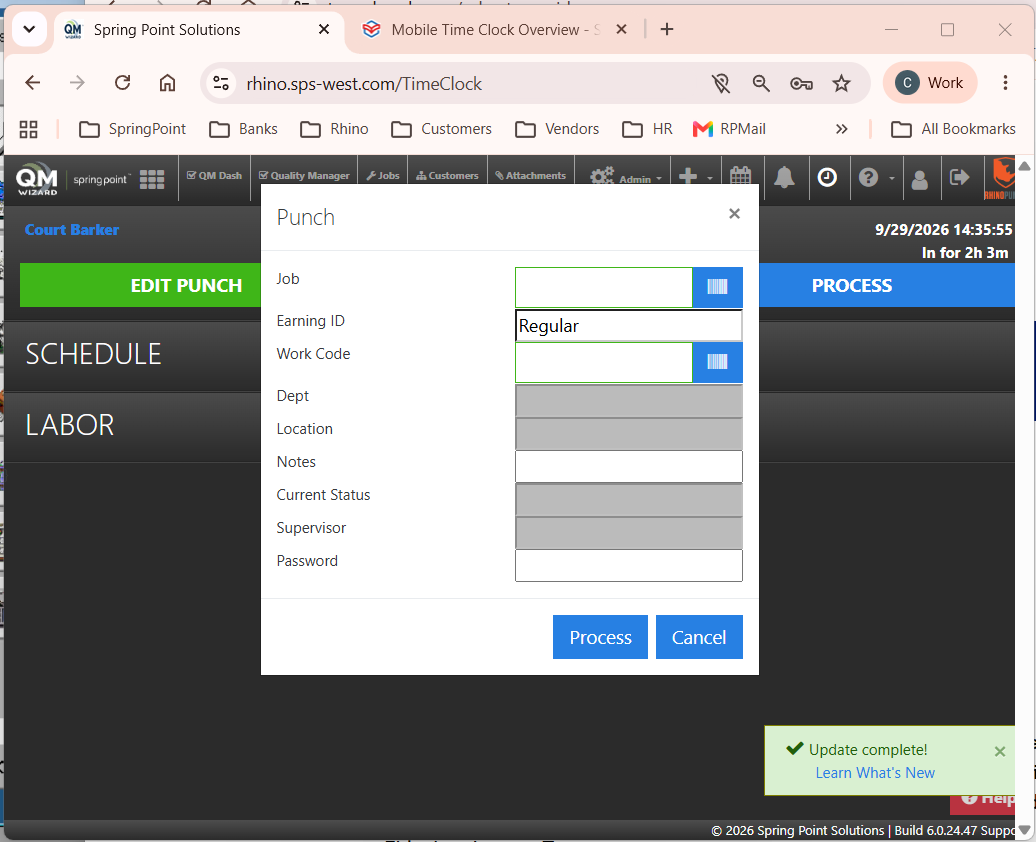
Remember: PROCESS never punches you out of payroll. It only closes one work session and opens the next.
Fixing a mistake on an open session
If you need to change the job or workcode on a session that's still running — without ending it and without punching out — use EDIT PUNCH instead of PROCESS.
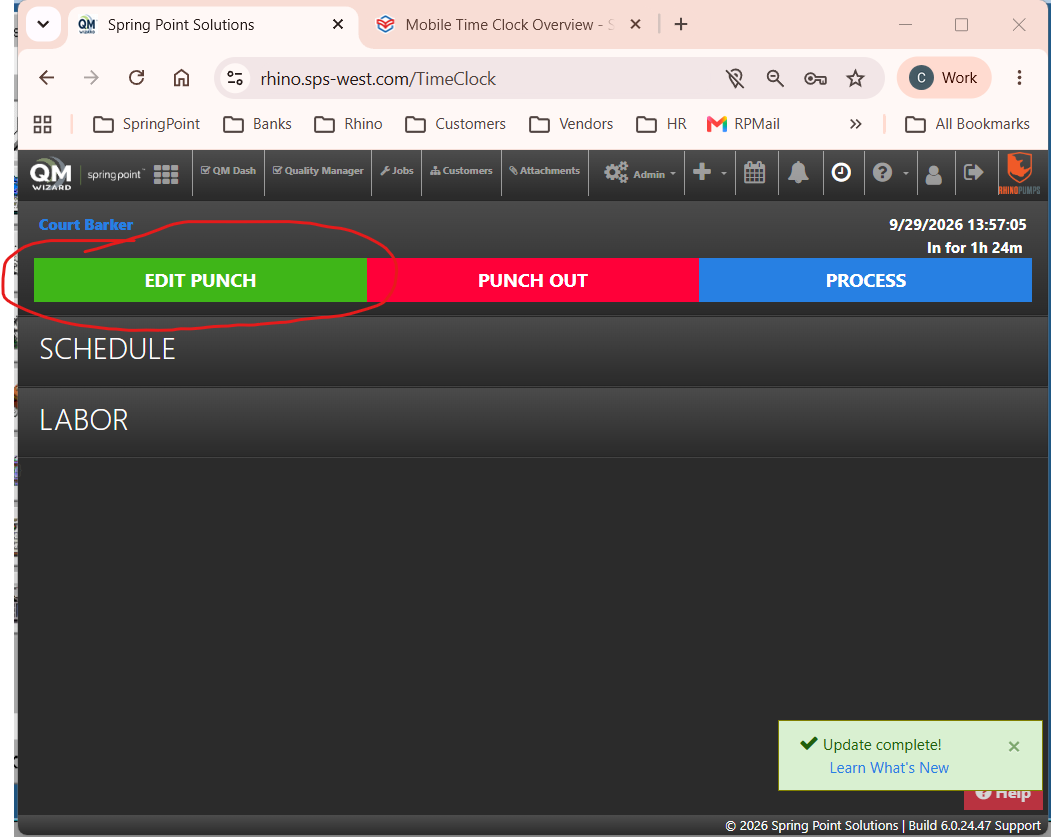
EDIT PUNCH only works on an open session — one with a begin-of-session entry but no end-of-session entry yet. Whatever you change applies to the whole open session, the same way a PROCESS correction applies to the whole session being closed.
Quick reference
- Always allow location access when your browser asks for it — punches are geo-stamped.
- Four payroll punches a day: morning in, lunch out, lunch in, end-of-day out.
- Can't allocate your time to a job? Leave Job blank and pick a Z-code instead.
- PROCESS closes one work session and opens the next — it does not punch you out of payroll.
- A correction made on PROCESS or EDIT PUNCH applies to the whole session, not just the moment you make it.
- EDIT PUNCH only works on an open session (no end-of-session entry yet).